
All about Smart Contacts Management
All About Smart Contacts Management

DOJODIGI Team
Contents:
Benefits
Accessing Smart Contacts Management
Adding & Importing Contacts
Common Troubleshooting
Deleting & Restoring Contacts
Using Contact Tags
Sending Messages (Emails)
Detailed Contacts & Contact Editing
Customisable Contacts Dashboard
Smart Contacts Lists
Other Features
Best Practices
DOJODIGI's Smart Contacts Management feature is a robust customer relationship management (CRM) tool designed to help businesses manage their interactions with clients effectively. This feature allows you to store, track, utilise automation and manage all your customer information in one centralized location. The features include contact tagging, automated workflows, detailed contact profiles, and more!
How DOJODIGI's Smart Contacts Management Benefits Your Business:
Streamlined Organization: Easily manage and access all contact information in one place, enhancing efficiency.
Personalized Marketing: Deliver more relevant and targeted communications, improving engagement and conversion rates.
Informed Decision Making: Leverage detailed insights and predictive analytics to make smarter business decisions.
Increased Productivity: Automate routine tasks and focus on high-impact activities, boosting overall productivity.
Improved Customer Relationships: Maintain a detailed communication history for more personalized and effective customer interactions.
Accessing Smart Contacts Management:
Login to DOJODIGI: Start by logging into your DOJODIGI account (app.dojodigi.com)
Navigate to Contacts: In the left-hand menu, click on "Contacts." This will take you to the main contact management interface where you can see all your saved contacts.

Adding Individual Contacts:
Click on the "Add Contact" button located at the top right corner of the Contacts page.
Fill in the necessary details such as name, email, phone number, and any other relevant information.
Click "Save" to add the contact to your database.

Bulk Importing Contacts
Importing files into our system is straightforward if you follow the guidelines and steps outlined below. This document will help you ensure a smooth and successful import process.
Only admins have permission to import files into the systemPrepare Your Data
Supported File Types:
Ensure your file is in .csv format.
File Preparation Requirements
Sheet: Only one
Size: Smaller than 30 MB
Headers: Include a header row with at least one column corresponding to a standard or custom field in the system. Note that all your custom fields should be created in the system before starting your first import
Please note that only new contacts import can be reverted but updating contacts is not a reversible actionMandatory Fields
1. For Creating Contacts: Either of Contact Name, Phone or Email
2. For Updating Contacts: Contact ID, Name, Email or Phone (as per the Duplicate Settings set for the account)
Understanding Import Options
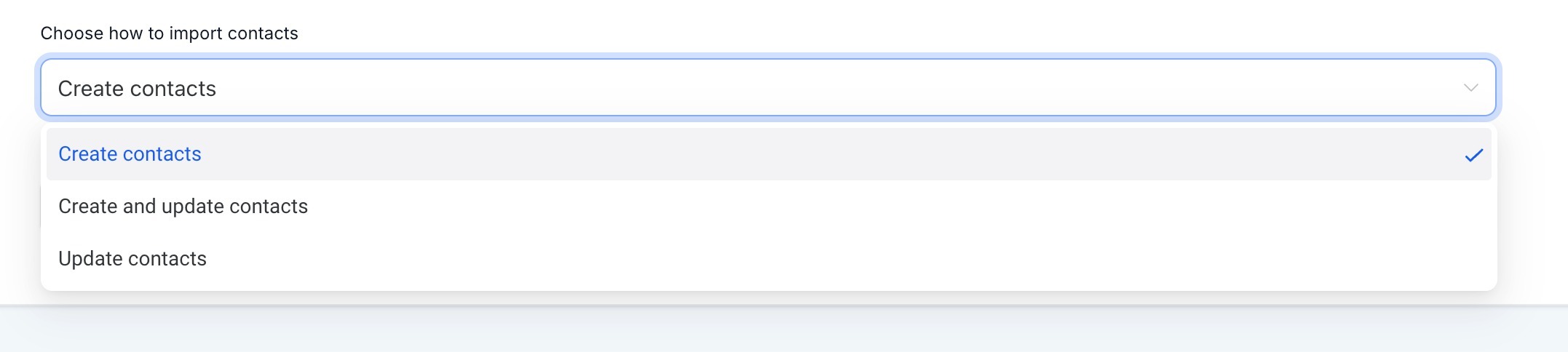
When importing objects, you have three options to choose from:
Create Contacts/Opportunities: Use this option to upload only new records into the system.
Update Contacts/Opportunities: Select this option to update information for existing records.
Create and Update Contacts/Opportunities: Choose this option for a combination of adding new records and updating existing ones.
Structuring Your File
Field Formatting
Date Picker:
Acceptable formats: mm/dd/yyyy (e.g., 10/28/2020), yyyy/mm/dd (e.g., 2020/10/28), mm-dd-yyyy (e.g., 10-28-2020), yyyy-mm-dd (e.g., 2020-10-28).
Multiple Options, Checkbox, Textbox List:
Acceptable formats: Value 1, Value 2, Value 3 (e.g., Blue, Yellow, Green). You can also use ; or . as separators.
Radio, Single Option:
Acceptable formats: Value 1 (e.g., Blue).
Contact Owner:
Format: FirstName LastName (e.g., Logan Paul).
Tags:
Acceptable formats: Value 1, Value 2, Value 3 (e.g., Blue, Yellow, Green). You can also use ; or . as separators.
Phone Number:
Format in E.164 (e.g., +65 91234567).
Numerical:
Acceptable formats: 1.23, 1234, .123.
Monetary:
Acceptable formats: 1234, 1,234,234.33.
Contact Followers:
Acceptable format: FirstName LastName, FirstName2 LastName2 (e.g. Adam Smith, David Lee)
Additional Email Addresses:
If you're importing contacts with more than one email address, include an Additional email addresses column with their secondary emails.
Acceptable format : [email protected], [email protected]
Additional Phone Numbers:
If you're importing contacts with more than one phone number, include an Additional phone numbers column with their secondary phone numbers.
Acceptable format : +65 91234567,+65 61234567
Importing Your File
Go to Contacts
On the top row with multiple actions - click on "Import Contacts"

Choose to import only Contacts, Opportunities or both. Click next.
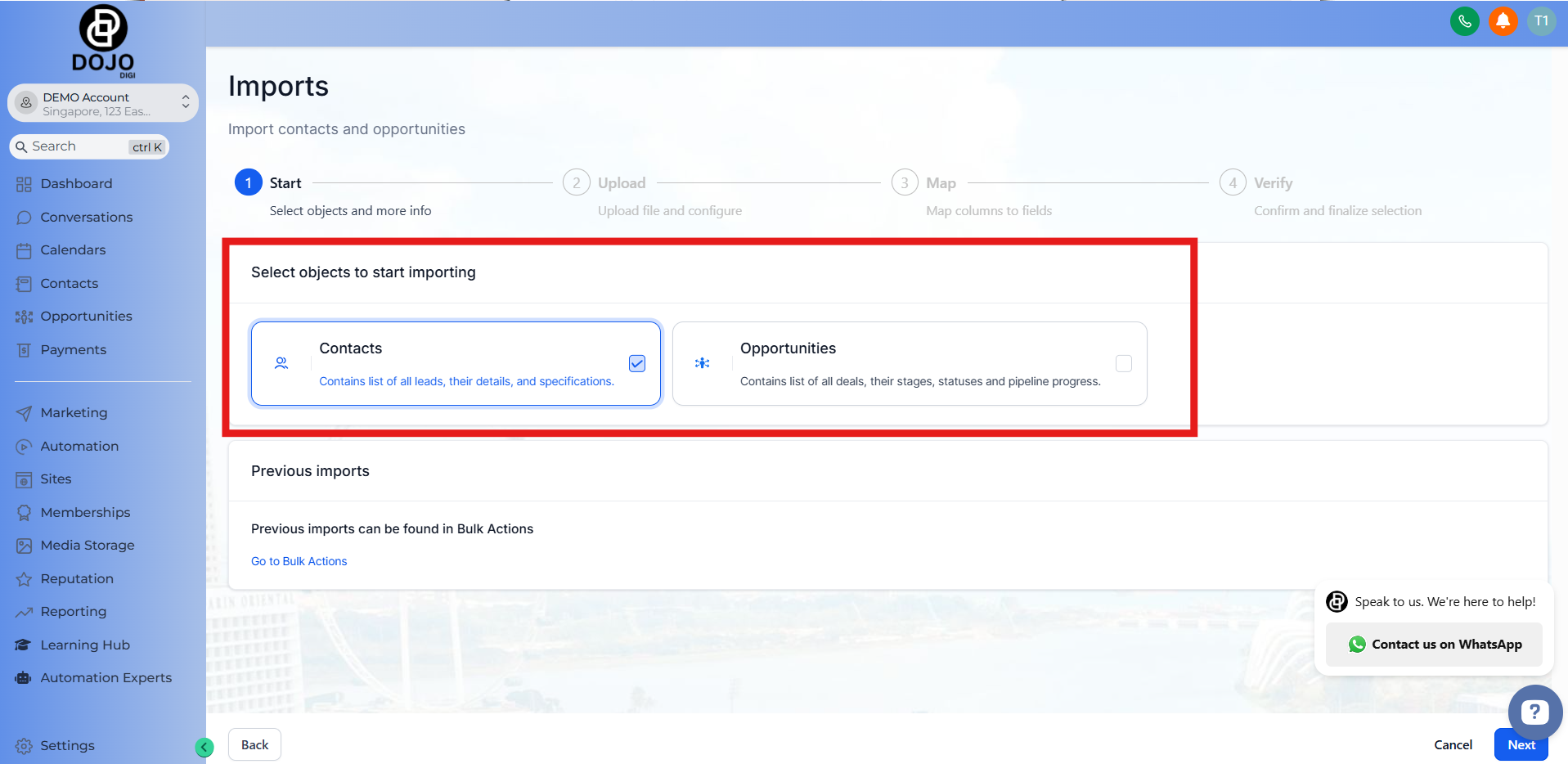
Upload the file for importing and then click on "Choose how to import contacts" to decide whether you want to create, update or do both.

De-duplication preferences are respected for finding contacts for creating and updating contacts.
Map Your Fields: Ensure each column in your file is correctly mapped to the corresponding field in the system. Adjust the mappings if necessary.

A few things to note:
Checking the "Don't update Empty Values" checkbox will not update any field if the imported file has empty values and the field does have some value for the opportunity
If you decide to not import certain field, you can choose to keep it unmapped and check the box on the bottom to proceed. -"Please ensure all mandatory fields are mapped. To proceed, either map all fields or choose Don't import data for unmapped columns"

6. Review and Confirm: Review the data preview to ensure everything looks correct. Confirm the import to proceed.
Note that it is mandatory to check the box on the bottom and accept the disclaimer to start importing.
You can also add tags to the corresponding contacts for these opportunities on this screen.

7. Monitor the Import: Check the import progress under Opportunities > Bulk Actions. If any errors occur, refer to the error messages provided for guidance on fixing them.

8. Monitor stats, errors and warnings by clicking on the "Show Stats" button for any import.
Errors: Failures in mandatory fields which cause the import to fail for that row
Warnings: Failures in optional fields where the import happens for that row but that specific field is not updated

Troubleshooting Common Errors (Bulk Import)
Error: Required fields to create/update contacts are missing
Solution: To successfully create contacts while importing:At least one of the following fields is mandatory for creating a new contact: Name, Phone, or Email. Ensure these fields are included in your CSV and mapped correctly during the import process.
For updating contacts:Verify your de-duplication settings under Settings > "Allow Duplicate Contacts".
Depending on the setting, contacts are identified using Contact ID, or a combination of Phone and Email. Include and map these fields for a successful update.
Error: Duplicate phone found / Duplicate email found
Solution: This error occurs when the import tool detects a duplicate phone number or email address in your file, based on your de-duplication settings.Verify your de-duplication settings under Settings > "Allow Duplicate Contacts".
If your settings restrict duplicates based on phone or email:
Update the phone number or email in your file to make it unique.
Alternatively, adjust the de-duplication setting to allow duplicate contacts regardless.
By ensuring the file aligns with your de-duplication settings or updating the settings, you can complete the import successfully.
Error: Contact is not valid or not in your sub-account
Solution: This error occurs when the Contact ID provided in the import file is either:Not part of the current sub-account.
Invalid or associated with a deleted contact.
To solve this -
Verify the Contact ID in your file matches a valid contact in the current sub-account.
If the contact has been deleted, retrieve the correct and current Contact ID for the record.
Update your file with the valid Contact ID and map it correctly during the import process.
By ensuring the Contact ID is accurate and belongs to the sub-account, you can successfully complete the import or update.
Error: Could not read the phone number
Solution: For the vast majority of cases, as long as you format the phone numbers in E.164 (Ex: +1 1234567890) our system will recognize it as valid- irrespective of the default Country picked.
We encourage you to visit: https://libphonenumber.appspot.com/ and run your phone number format by the tool in conjunction with the country code to ascertain its appropriateness for upload.
Error: Could not read the date
Solution: Ensure that the dates in your file conform to one of the following supported formats:YYYY-MM-DD(e.g., 2024-09-08 or 2024-9-8)YYYY/M/D(e.g., 2024/09/08 or 2024/9/8)YYYY.MM.DD(e.g., 2024.09.08 or 2024.9.8)M.D.YYYY(e.g., 09.08.2024 or 9.8.2024)M/D/YYYY(e.g., 09/08/2024 or 9/8/2024)M-D-YYYY(e.g., 09-08-2024 or 9-8-2024)YYYY/MM/DD(e.g., 2024/09/08)MM/DD/YYYY(e.g., 09/08/2024 or 9/8/2024)MM-DD-YYYY(e.g., 09-08-2024 or 9-8-2024)MM.DD.YYYY(e.g., 09.08.2024 or 9.8.2024)DD MMM YYYY(e.g., 08 Sep 2024 or 8 Sep 2024)MMM DD YYYY(e.g., Sep 08 2024 or Sep 8 2024)YYYY MMM DD(e.g., 2024 Sep 08 or 2024 Sep 8)DD-MMM-YYYY(e.g., 08-Sep-2024 or 8-Sep-2024)MMM-DD-YYYY(e.g., Sep-08-2024 or Sep-8-2024)YYYY-MMM-DD(e.g., 2024-Sep-08 or 2024-Sep-8)DD MMM, YYYY(e.g., 08 Sep, 2024 or 8 Sep, 2024)MMM DD, YYYY(e.g., Sep 08, 2024 or Sep 8, 2024)DDth MMM YYYY(e.g., 08th Sep 2024 or 8th Sep 2024)MMM DDth YYYY(e.g., Sep 08th 2024 or Sep 8th 2024)DDth MMM, YYYY(e.g., 08th Sep, 2024 or 8th Sep, 2024)MMM DDth, YYYY(e.g., Sep 08th, 2024 or Sep 8th, 2024)DD MMMM YYYY(e.g., 08 September 2024 or 8 September 2024)MMMM DD YYYY(e.g., September 08 2024 or September 8 2024)YYYY MMMM DD(e.g., 2024 September 08 or 2024 September 8)MMMM DD, YYYY(e.g., September 08, 2024 or September 8, 2024)DD MMMM, YYYY(e.g., 08 September, 2024 or 8 September, 2024)
Correct the dates in your file to match one of these formats, and reattempt the import. Properly formatted dates ensure they are recognized and mapped successfully.
Error: Invalid email address
Solution: This error occurs when the email address in your file does not follow a valid format (e.g., missing "@" or domain extensions).Verify the format of all email addresses in your file.
A valid email address should look like:
[email protected].
Correct any invalid email addresses in your file (e.g., fix typos, add missing parts).
Reattempt the import with the corrected file.
Ensuring accurate email formats will prevent this error and allow for a successful import.
Deleting Contacts
Select the contacts you wish to delete by checking their boxes and hitting the delete button at the top

Restoring Deleted Contacts:
Head to restore, select the contacts you would like to restore and click restore.

Using Contact Tags:
Tags are used to organise and segment contacts and are used in workflow automations and for activity tracking.
Create Tags:
Go to the "Settings" menu in the left-hand navigation.
Click on "Tags" under the Contacts section.

Click "Add Tag," enter the tag name (e.g., "Lead," "Customer," "VIP"), and save.

Additionally, tags can be created when assigning contacts to tags (see below).
Assign Tags to Contacts:
Navigate back to the Contacts page.
Select one or multiple contacts by clicking the checkboxes next to their names.

Click the "Add Tag," choose the relevant tags, and apply. You may also create new tags directly here by clicking on the plus when entering a new tag.

The description below the tag helps you and your team understand the context or reason behind the tagging action when you review tracking reports. It provides additional details that can clarify why a tag was added to a contact.
This description will appear in tracking reports, allowing you to easily identify and analyze the tagging actions taken over time. This is particularly useful for auditing and monitoring your workflows and automations.

Click on add to add your tags to the chosen contacts
Detailed Contact Profiles:
View & Edit Contact Profiles:
Click on any contact’s name in the Contacts list to open their profile.
Here, you can see all the contact details, interaction history, notes, and assigned tags, automations and their contact preferences(DND)
In the contact profile, click on any of the fields you wish to edit. You may also edit any tags labelled to them, any workflow automations they are apart of and any sales pipelines they might be in or will be in.
Note to click save once you have finished editing.

In the middle tab, you may view any past interactions and logs (eg emails sent, forms they filled etc, workflows executed etc).

To the right, there are 6 tabs for your contact.
Activity - This provides a chronological timeline of each contact's engagement history (eg website, funnels, social media campaigns, email marketing etc). Make more informed decisions with our contacts activity tracker.

Session source indicates where the traffic was derived from. Eg if you ran a email marketing campaign on DOJODIGI and this contact came here from that, session source will show as the email marketing campaign.
Tasks - Allocate a staff member to this specific contact for any action necessary, helping ensure timely follow-ups and consistent customer communication.
Notes - Add notes and comments to each contact's record, facilitating easy reference and detailed tracking of customer interactions and preferences.
Appointments - View the appointments and bookings the contact has made with you here. DOJODIGI’s bookings and calendar feature is a powerful tool for businesses. This feature includes capabilities like automated scheduling, customisable booking pages, calendars integration, automatic reminders and notifications for staff and customers and booking analytics. This powerful feature streamlines appointment and scheduling processes, enhances customer satisfaction, and improves overall operational efficiency. More on Bookings & Appointments
Documents - Upload any files or documents related to this contact. For example, proposals, contracts or agreements signed. This improves workflow efficiency & convenience by having relevant documents associated with the contact tied directly to and easily accesible via their contact information.
Payments - Conveniently view any payments made by the contact.
Send Messages:
From a contact’s profile, use the communication options (emai) to send messages directly.
Kindly note our platform does not currently support SMS or call options. 2 way SMS & Call services may arrive in the future at no additional platform service charges for existing users.
Click on the email icon to draft and send your message.

Customise Contacts Dashboard:
Click on columns. A drop down menu will appear. Check off the information you want shown on your contacts dashboard! This customisation feature allows your business to run efficiently by displaying information most crtitcal to you!

Smart Contact Lists:
Smart contact lists are a way to segment and organise your contacts by filters or criteria, making it easy to find and manage customer information.
Smart lists can be created by segmenting contacts according to: business name, company name, email, first name, full name, last name, tag, wildcard name, contact information, address, assigned, birth date, city, country, created, created by, DND, Facebook ID, followers, Google ID, inbound DND, Instagram ID, valid WhatsApp, last updated by, last email clicked date, last email opened date, phone, postal zip code, source, source type, state, street name, TikTok lead ID, timezone, type, valid email, website, contact activity, campaign, import, last activity, last activity type, last appointment - confirmed/open, updated, workflow (active), workflow (finished), opportunity information, age, pipeline, pipeline stage, pipeline status, membership, offer, product, attribution, attribution (occurrence), attribution ad group ID, attribution ad ID, attribution campaign, attribution campaign ID, attribution content, attribution FB click ID, attribution Google click ID, attribution keyword, attribution match type, attribution medium, attribution session source, attribution source, attribution term, and custom fields.
Custom fields are custom data entry points you may place in areas like forms and surveys. You may group your contacts together according to their answers to your custom fields. To learn more about custom fields, click here.
Lets say I want to segment contacts whose birthday is this month so I could reach out and offer them a special birthday offer.
Go to more filters filters, birth date, this month and click the "save as smart list" button


Name the newly created smartlist and you should see a new contacts list appear on your contacts dashboard. Click on it to view only the contacts in the list

Managing Smart Lists
To manage this smart list, head to "manage smart lists"

Here you may copy, rename, delete and share your smart lists.
Do note that the lists you create will not be automatically shared with your other staff on the platform. Simply click on the share button, choose which staff you want to share this with and hit send!

DOJODIGI smart contacts management feature software
Other Features

Bulk Actions - A log of mass actions eg importing of contacts, emails sent, deletion etc
Restore - Restore deleted contacts here
Tasks - View and create tasks for your employees and assign them to specific contacts here
Company - another way to segment and organise your contacts. View contacts segmented by company here.
Best Practice: The normal segmentation means in DOJODIGI are more than sufficient! The company tab is just a little extra feature for people who prefer to segment this way!
Manage Smart Lists - Edit, share and delete your smart lists here.
Note: Smart lists created by you are not automatically shared to all your staff members on the platform. Share it with them here!
Settings - Brings you to the platform's settings tab
Relevant to smart contacts management: allows you to easily access tags settings
Best Practices for Smart Contacts Management
Regularly Update Contact Information: Ensure your contact data is always up-to-date for accurate communication.
Use Tags Effectively: Implement a clear tagging system to segment your contacts for targeted marketing campaigns.
Automate Repetitive Tasks: Leverage workflows to automate follow-ups, reminders, and other repetitive tasks, saving time and reducing manual effort.
Analyze Contact Data: Regularly review contact reports to gain insights into customer behavior and adjust your strategies accordingly.
If you run a website, chances are you already have a blog. And if you don’t, maybe you should start one. A blog can boost your brand awareness, increase conversions, and improve customer service. Blogs help you connect with your audience on a more personal level and allow them to interact with you in an individual capacity. Blogging also helps to present viewers with fresh content regularly. Check out our blogs feature.
DOJODIGI Team
Contact us at [email protected] for any queries you may have. At DOJODIGI, we pride ourselves in customer support & satisfaction.